You invested in a powerful GPU and CPU—so why are you still dealing with frame drops, stuttering, or random crashes? The answer is often thermal throttling. When your components overheat, they automatically slow down to prevent damage, silently robbing you of the performance you paid for. This guide delivers practical, proven gaming pc cooling solutions to help you unlock your system’s true potential. From free airflow tweaks to advanced hardware upgrades, we’ll walk you through a tiered strategy designed for every budget and skill level—so your rig runs cooler, quieter, and faster when it matters most.
The Foundation: No-Cost Tweaks for Immediate Temperature Drops
Clean Your Rig: The #1 Free Performance Boost
Dust is more than cosmetic—it acts as an insulator, trapping heat on heatsinks and restricting airflow through fans. That means higher temps and thermal throttling (when your CPU/GPU slows itself to prevent damage). Studies show clogged cooling systems can raise temps by 5–15°C (Source: Intel Thermal Design Guidelines).
Step-by-step:
- Power down and unplug.
- Hold fans in place (prevent overspinning damage).
- Use short bursts of compressed air.
- Clear filters, GPU shroud, and PSU intake.
Most guides stop there. Here’s the gap: clean cable pathways too. Tangled cables disrupt airflow turbulence patterns—something rarely mentioned in gaming pc cooling solutions discussions.
Optimize Airflow Pathways
Think of airflow like a highway:
- Front/Bottom = Intake →
- CPU/GPU = Heat Zone →
- Rear/Top = Exhaust ↑
Positive pressure (more intake than exhaust) reduces dust buildup. Negative pressure can improve peak heat removal but pulls dust through gaps. Balanced setups usually win for longevity (Puget Systems testing).
Master Your Fan Curves
Access BIOS/UEFI or tools like MSI Afterburner. Create a “gaming” curve:
- 40°C = 30%
- 60°C = 60%
- 75°C = 85%
Yes, it’s louder (jet-engine vibes), but lower sustained temps preserve boost clocks. Pro tip: pair this with insights from ssd vs hdd for gaming speed and load time comparisons to eliminate bottlenecks holistically.
Level Up: Affordable Upgrades That Make a Real Difference
Strategic Case Fan Installation
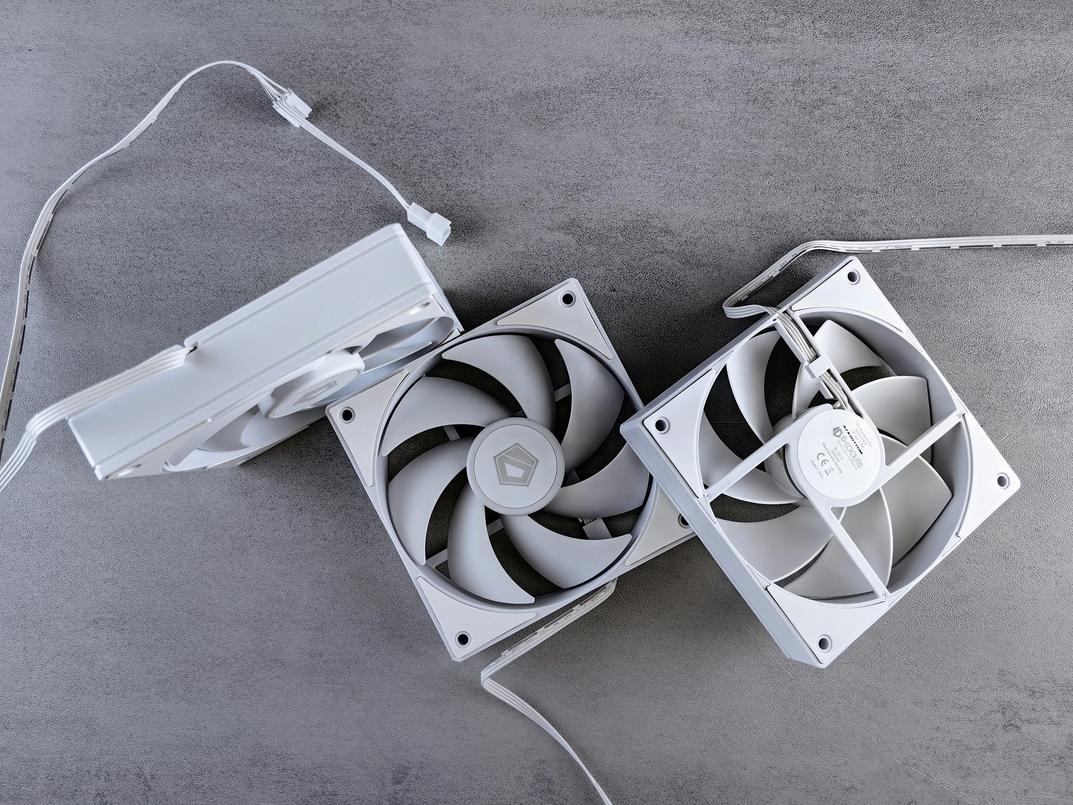
More fans don’t automatically mean better cooling. Airflow direction matters more than fan count. Intake fans (front or bottom) pull cool air in. Exhaust fans (top or rear) push hot air out. That front-to-back, bottom-to-top path follows natural heat rise (physics wins again).
Use the right fan for the job:
- Static pressure fans for front intakes behind mesh or radiators
- High-airflow fans for unobstructed exhaust positions
Testing by Gamers Nexus shows optimized airflow setups can lower GPU and CPU temps by 5–10°C, which directly impacts performance stability under load. Lower temps reduce thermal throttling (when components slow themselves down to prevent overheating). In fast-paced games, that consistency can mean the difference between smooth frames and sudden dips.
Some argue stock case layouts are “good enough.” For casual use, maybe. But sustained gaming loads expose airflow weaknesses fast.
Replacing Stock CPU Coolers
The cooler bundled with most CPUs is designed for baseline operation—not extended gaming sessions. Under heavy loads, stock coolers often hit 80–95°C, according to benchmark data from Tom’s Hardware.
Budget tower coolers like the Cooler Master Hyper 212 or Thermalright Peerless Assassin routinely drop temps by 15–25°C while running quieter thanks to larger heatsinks and 120mm fans.
Benefits include:
- Lower CPU temperatures
- Reduced fan noise
- Headroom for mild overclocking (increasing CPU speed beyond factory settings)
Critics say aftermarket coolers are unnecessary unless overclocking. But even at stock speeds, cooler CPUs sustain boost clocks longer—meaning better real-world performance.
Applying High-Quality Thermal Paste
Thermal paste (a heat-conductive compound between CPU and cooler) dries out over time. Degraded paste reduces heat transfer efficiency.
To replace it:
- Remove the cooler.
- Clean old paste with isopropyl alcohol (90%+).
- Apply a pea-sized dot or thin X-pattern of premium paste (brands like Arctic MX-6 or Noctua NT-H2).
- Reinstall evenly.
Independent testing shows high-performance compounds can improve temps by 2–5°C versus dried or low-grade paste. It’s one of the simplest, lowest-cost gaming pc cooling solutions available.
Small upgrades. Measurable results. Big difference.
All-In-One (AIO) liquid coolers are the natural evolution from bulky air towers. Instead of relying solely on heat pipes and fins, an AIO uses three core parts: a pump, a cold plate (or block), and a radiator. The pump circulates coolant through the block, which absorbs heat from the CPU, then pushes that heat toward the radiator where fans disperse it. In practical terms, this means superior heat dissipation for high-end processors and a cleaner interior aesthetic (goodbye, giant metal brick).
Radiator size matters. A 240mm model fits most mid-towers, while 280mm and 360mm units offer more surface area for aggressive overclocks. Generally, more surface area equals lower temperatures, assuming airflow is optimized. For best results, mount the radiator at the top or front of the case; top exhaust setups often reduce overall system heat, whereas front intake can provide cooler liquid temps. Pro tip: pair your radiator with high static pressure fans to maximize performance.
Meanwhile, GPUs often run hotter than CPUs under load. Aftermarket GPU coolers exist, but they can be expensive and void warranties. A more practical upgrade is replacing the stock thermal paste and thermal pads. Thermal paste is the conductive compound between the chip and heatsink, and fresh application can drop temperatures by several degrees, according to multiple teardown benchmarks from Gamers Nexus. That small improvement can stabilize higher boost clocks and reduce fan noise.
Finally, there is the enthusiast’s path: custom water cooling loops. These systems use separate reservoirs, tubing, fittings, and water blocks to cool CPUs and GPUs together. They deliver some of the lowest temperatures possible and unmatched visual flair, but they demand serious planning and maintenance. This is not essential for most gamers exploring gaming pc cooling solutions; it is an expert-level project.
Prediction: as chip power draw continues rising, hybrid cooling designs may become mainstream within five years. Speculation, yes—but the trend lines suggest heat is only going up.
Your Roadmap to a Cooler, Faster Gaming Rig
You came here looking for a clear way to stop your system from overheating and throttling mid-game—and now you have it. From simple software tweaks to advanced hardware upgrades, you’ve got a practical plan to fix the root cause of lost frames and unstable performance.
Thermal throttling isn’t something you have to live with. With the right gaming pc cooling solutions, you can unlock smoother gameplay, longer component lifespan, and a noticeably faster rig.
Start with the no-cost basics today—clean out dust, adjust your fan curves, and monitor temps. Thousands of gamers have boosted performance with these exact steps. Take action now and feel the difference in your very next session.
 Gaming Rig Optimization & Tech Innovation Specialist
There is a specific skill involved in explaining something clearly — one that is completely separate from actually knowing the subject. Joana Dillardoniel has both. They has spent years working with tech-powered gaming innovations in a hands-on capacity, and an equal amount of time figuring out how to translate that experience into writing that people with different backgrounds can actually absorb and use.
Joana tends to approach complex subjects — Tech-Powered Gaming Innovations, Expert Tutorials, World-Class eSports Frameworks being good examples — by starting with what the reader already knows, then building outward from there rather than dropping them in the deep end. It sounds like a small thing. In practice it makes a significant difference in whether someone finishes the article or abandons it halfway through. They is also good at knowing when to stop — a surprisingly underrated skill. Some writers bury useful information under so many caveats and qualifications that the point disappears. Joana knows where the point is and gets there without too many detours.
The practical effect of all this is that people who read Joana's work tend to come away actually capable of doing something with it. Not just vaguely informed — actually capable. For a writer working in tech-powered gaming innovations, that is probably the best possible outcome, and it's the standard Joana holds they's own work to.
Gaming Rig Optimization & Tech Innovation Specialist
There is a specific skill involved in explaining something clearly — one that is completely separate from actually knowing the subject. Joana Dillardoniel has both. They has spent years working with tech-powered gaming innovations in a hands-on capacity, and an equal amount of time figuring out how to translate that experience into writing that people with different backgrounds can actually absorb and use.
Joana tends to approach complex subjects — Tech-Powered Gaming Innovations, Expert Tutorials, World-Class eSports Frameworks being good examples — by starting with what the reader already knows, then building outward from there rather than dropping them in the deep end. It sounds like a small thing. In practice it makes a significant difference in whether someone finishes the article or abandons it halfway through. They is also good at knowing when to stop — a surprisingly underrated skill. Some writers bury useful information under so many caveats and qualifications that the point disappears. Joana knows where the point is and gets there without too many detours.
The practical effect of all this is that people who read Joana's work tend to come away actually capable of doing something with it. Not just vaguely informed — actually capable. For a writer working in tech-powered gaming innovations, that is probably the best possible outcome, and it's the standard Joana holds they's own work to.